Symbol Mapping Issues: Selecting the Correct Server
Problem Overview
If you're experiencing symbol mapping issues in PF1, the most common cause is selecting an incorrect server when adding your trading account. This can result in symbols appearing with extensions or in non-standardized formats.
How to Identify the Issue
You can identify this problem by looking at your symbol names:
❌ Incorrect Symbols (Wrong Server)
XAUUSD.m
EURUSD.e
GBPUSD.raw
Other symbols with extensions or non-standard formatting
✅ Correct Symbols (Proper Server)
XAUUSD
EURUSD
GBPUSD
Clean, normalized symbol names without extensions
Solution: Select the Correct Server
When adding your trading account to PF1, ensure you select the server that has pre-configured symbol mappings.
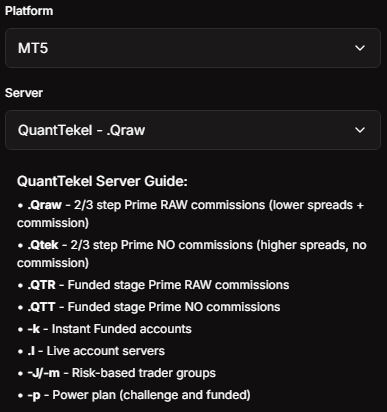
Example: QuantTekel Server Selection
For example, QuantTekel Funded (Raw commissions) accounts, make sure to select: QuantTekel - .QTR
This server includes:
✅ Pre-configured symbol mappings
✅ Normalized symbol names
✅ Proper data synchronization
If there are servers where different mappings options are provided, once you have selected a server, you will see text below that explaining when each server should be selected and in what scenario. Ensure you double check this. Continuing with the QuantTekel example:
Why This Matters
The correct server selection ensures:
Accurate tracking of your trading performance
Proper symbol recognition across all PF1 features
Seamless data integration with your prop firm account
Correct analytics and reporting
Proper position synchronization - incorrect server selection can prevent your trades from syncing correctly within your Positions tab
Step-by-Step Fix
Remove the incorrectly added account (if already added)
Add your account again
Carefully select the server with the proper mappings
Look for servers ending in extensions like ".QTR" for QuantTekel
Avoid generic or unmapped server options
Verify symbol appearance - they should be clean and normalized
Still Having Issues?
If you continue to experience symbol mapping problems after selecting the correct server:
Double-check your server selection
Contact our support team with:
Your prop firm name
The server you selected
Screenshots of the symbol issues
Wait for account synchronization (may take a few minutes)
Need more help? Contact PF1 support through the platform or reach out to our customer service team for personalized assistance.
Was this helpful?
Still need help? Share an idea